How to disconnect your CRM
Stop Stoloros from reading your CRM. Points already earned are kept.
Disconnecting stops Stoloros from reading your CRM. Use it to change the API key, to switch to another CRM, or to stop the connection for good.
Who it's for
Managers · Free plan
Before you start
- A CRM is connected to your team.
- Tell your reps: after the disconnection, their CRM actions no longer earn points.
Steps
- Open Manager area and go to the CRM card, for example Brevo CRM.
- Click Disconnect.
- Stoloros asks "Stop reading Brevo?". Click Yes, disconnect. Click No to keep the connection.
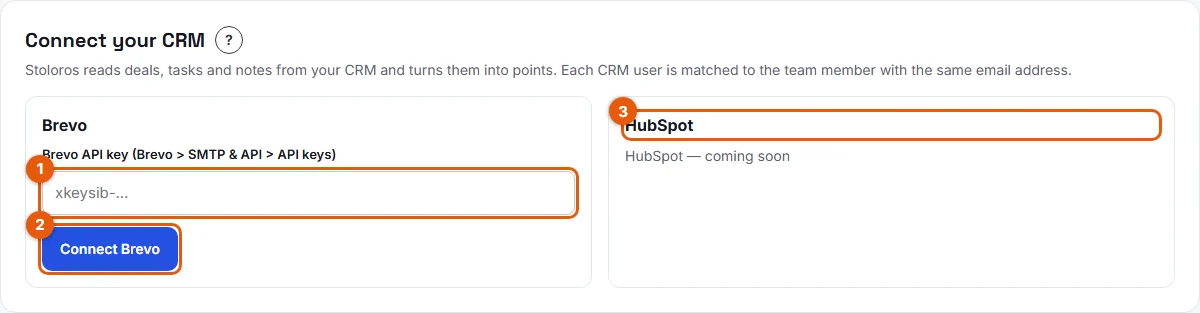
Result
A message confirms that the CRM is disconnected. The card shows Connect your CRM again, with the Brevo and HubSpot options. The leaderboard, the action logs and all points already earned stay as they are.
Good to know
- The stored API key is deleted with the connection.
- Your pipeline choice is reset. Choose the pipelines again after a new connection.
- Actions logged in the CRM while it is disconnected are never counted, even after you connect again: Stoloros only counts what happens after each connection.
- Stoloros reads one CRM at a time. To switch from one CRM to another, disconnect the first one, then connect the new one.
- Disconnecting does not change anything in your CRM. Stoloros only reads it.
FAQ
Do my reps lose their points?
No. Points already earned are kept, in the leaderboard and in each action log.
I need to replace my Brevo API key. What should I do?
Disconnect, then connect Brevo again with the new key. Do it quickly: actions logged in between are not counted.
Can I see the CRM card as a sales rep?
No. Only managers see the CRM card, in the Manager area.