How to find your way around Stoloros
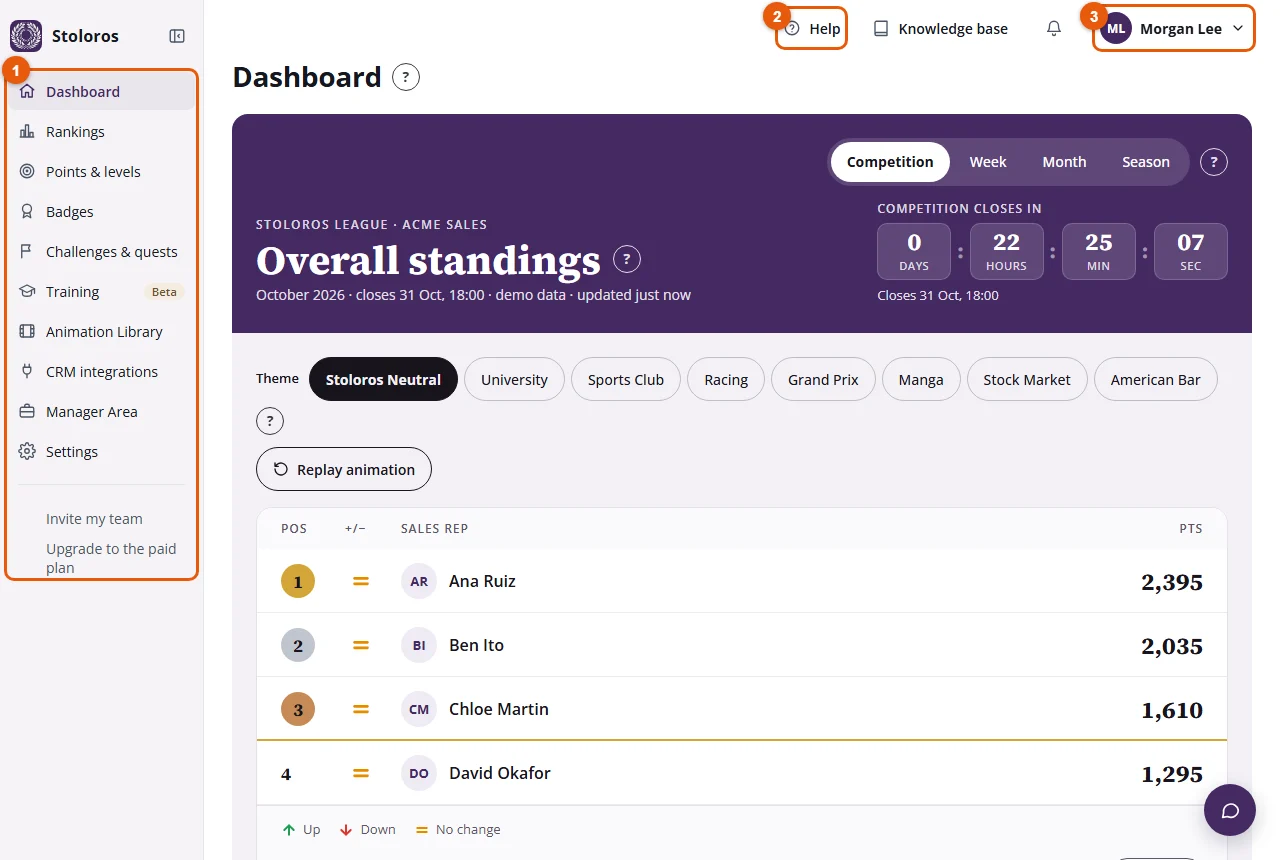
The menu on the left opens each feature; help, the knowledge base, cheers and your profile menu are at the top right.
Every page of Stoloros has the same frame: a menu on the left with the features, and a few shortcuts at the top right.
Who it's for
Managers and sales reps · Free plan
Before you start
- You are signed in to Stoloros.
Steps
- Use the menu on the left (marked 1) to open a feature: Dashboard (the team leaderboard), Rankings, Points & levels, Badges, Challenges & quests, Training and Settings. Managers also see Animation Library, CRM integrations and Manager Area.
- Click the Stoloros logo at the top of the menu to come back to the Dashboard from any page.
- To get more room, click Collapse the menu next to the logo: only the icons stay. Click Expand the menu to bring the names back. Stoloros remembers your choice on this browser.
- At the top right, click Help (marked 2) to open the help center in a new tab, or Knowledge base. The bell shows a red dot when a colleague has sent you a cheer.
- Click your name (marked 3) to open your profile menu: My profile, Account settings, Billing and Sign out. Managers also choose the team Language there.
Result
You open each feature in one click, and the feature you are on is highlighted in the menu.
Good to know
- On a tablet, the menu starts collapsed to icons only.
- On a phone, the menu is hidden: tap Open the menu at the top left, next to the logo. Help and the knowledge base show as icons only.
- The round button at the bottom right opens the help for the page you are on.
- Badges and Challenges & quests are being expanded: for now, they show what is already available and say what is coming.
FAQ
I don't see Manager Area in the menu.
Only managers see it, with Animation Library and CRM integrations. Ask your manager if you need a setting changed.
Where did My performance go?
Sales reps open it with Points & levels in the menu on the left.