How to read the team dashboard
See your team's week at a glance: CRM activity, active reps, deals won, challenges and who has gone quiet.
The Team dashboard sits at the top of the Manager area. It sums up the current week in four figures and shows which sales reps have gone quiet.
Who it's for
Managers · Free plan
Before you start
- You are signed in as a manager. Sales reps do not see this page.
- Your CRM is connected. Without a CRM, the dashboard shows demo data and says so under the title.
- Figures follow the CRM sync: when someone opens the leaderboard (at most every 2 minutes), when you click Sync now, and once a day.
Steps
- Click Manager area in the top menu. The page opens on the Team dashboard, with the dates of the current week under the title.
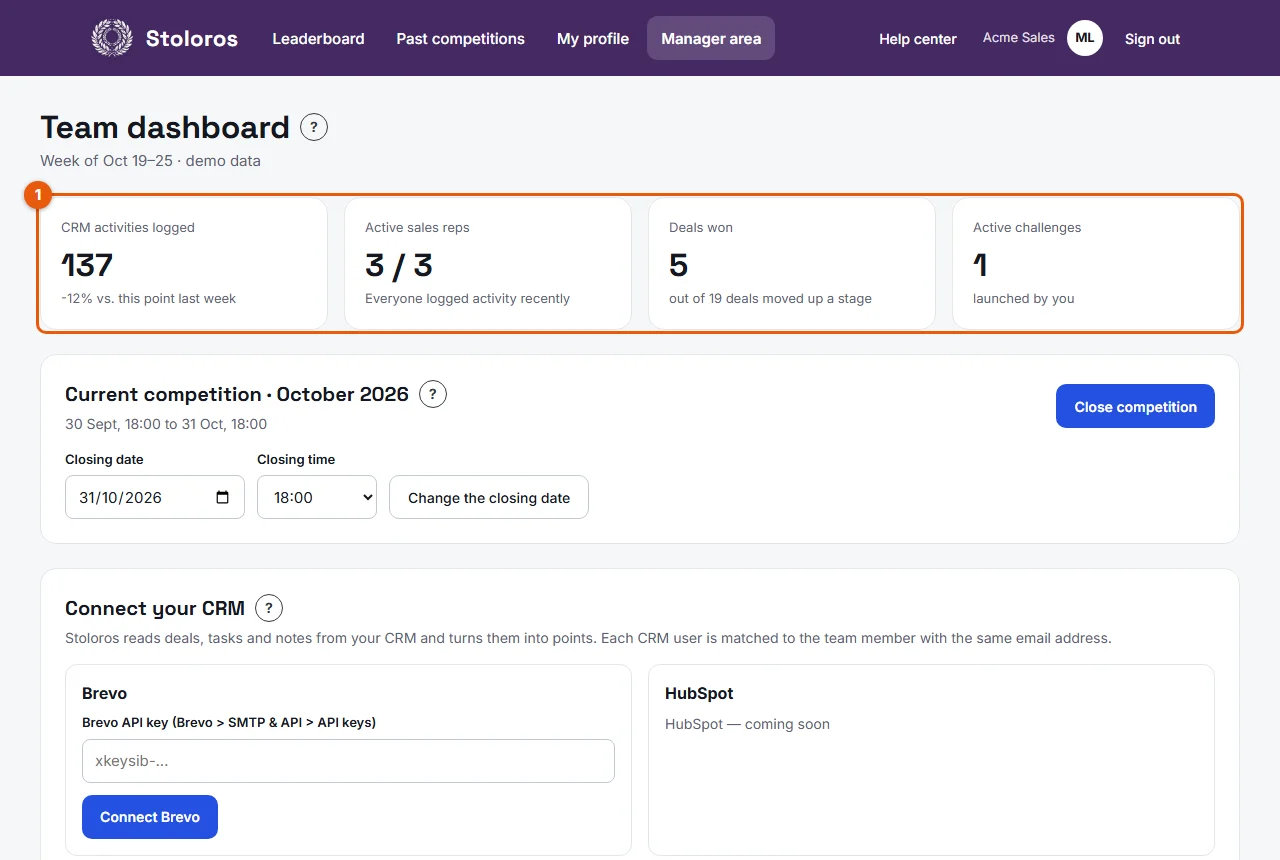
- Read the four cards of This week's indicators (1 on the screenshot):
- CRM activities logged: every action read from the CRM this week, compared with the same point last week (for example "+12% vs. this point last week").
- Active sales reps: reps with recent activity, out of all reps. The note turns red when someone has logged nothing for 3 days or more, for example "2 reps with no activity for 3+ days".
- Deals won: deals won this week, out of the deals moved up a stage.
- Active challenges: the challenges you launched that are still running.
- Scroll down to Team activity this week (2). Each row shows a sales rep with their Points, Deals advanced, Tasks completed and Last activity.
- Check the Last activity column. After 3 days without any CRM action, it turns red, for example "No activity for 4 days".
Result
In a few seconds, you know how active the team is this week and who might need a word of support.
Good to know
- Days and weeks follow the team time zone and first day of the week, set in Settings > Company.
- The dashboard only sees what is logged in the CRM. With Brevo, calls made and meetings booked are not available, so a rep who spent the day on the phone can look inactive.
- A red alert is a reason to check in, not a verdict. The rep may be on leave, or their CRM email may differ from their Stoloros email.
- The Active challenges card counts the challenges you launched from the Challenges card further down the same page.
FAQ
Why does a busy rep show no activity?
Stoloros only counts actions it can read in the CRM. Check that the rep is matched to their CRM user (Team members > CRM user), that the deal is in a pipeline that earns points, and that the action type is provided by your CRM.
Why is there no percentage under CRM activities logged?
When nothing was logged at the same point last week, the card shows "No activity at this point last week" instead of a comparison.
Can I see a previous week?
No. The dashboard always shows the current week. To look back at a closed competition, open Past competitions in the top menu.