How to award points manually
Reward effort that your CRM does not capture, with a reason, a note and a confirmation.
Some effort never shows up in the CRM: helping a colleague close a deal, a great customer event, a referral. With Award points, you give a sales rep extra points, with a reason everyone can understand.
Who it's for
Managers · Free plan
Before you start
- You are signed in as a manager.
- The rep is on the leaderboard. Only leaderboard members can receive points. If nobody is on it yet, the card shows "Invite sales reps first: points can only go to members of the leaderboard."
- Each award is capped: 500 points by default.
Steps
- Open Manager area and scroll to the Award points card.
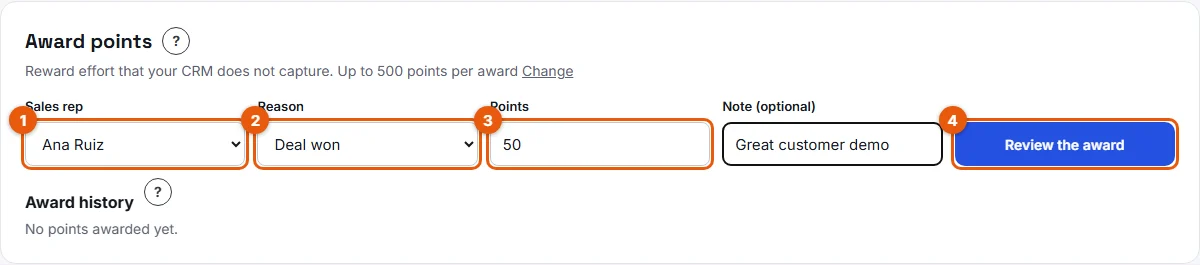
- In Sales rep (1 on the screenshot), choose who receives the points, for example Ana Ruiz.
- In Reason (2), pick a scoring criterion such as Deal won, or Custom for anything else.
- Check Points (3). The field is pre-filled with the points of the chosen criterion. You can change it: any whole number from 1 up to the cap.
- Add a note. It is optional for a criterion and required for Custom (up to 140 characters), for example "Ran the client workshop in Lyon".
- Click Review the award (4).
- Read the summary: points, rep, reason, note and the periods the points count for. Click Confirm award, or Back to edit.
Result
A message confirms the award, for example "Ana Ruiz received 50 points. They will see it on the leaderboard." The points count today: for this week, this month, the season and the current competition.
On the leaderboard, a star appears next to the rep's points. Hovering over it shows the Manager bonus tooltip with each award of the period: points, reason and date. In the rep's Action log, the award appears as a line marked with a star, and Manager awards is a separate line in the Points breakdown.
Good to know
- Manual awards are outside the daily caps of the scoring rules.
- To change the cap per award, click Change next to the card's introduction, enter a number from 1 to 10,000, then Save. You can also set it in Settings > Scoring rules > Maximum points per manager award.
- Awards are visible to the whole team through the star on the leaderboard. Write notes you would be happy for everyone to read.
- Every award is listed in Award history, just below, with its date and the manager who gave it.
FAQ
I made a mistake. Can I take the points back?
Yes, as long as the competition that contains the award is still open. See How to cancel a manual award.
Why is the review button refused?
The card tells you what is missing: no rep chosen, points that are not a whole number above zero, points above the cap, or a Custom award without a note.
Can I award points to myself?
Only if you have joined the leaderboard as a manager, like any other member.