How to switch leaderboard periods
Compare points for the current competition, the week, the month or the season, and choose which periods your team sees.
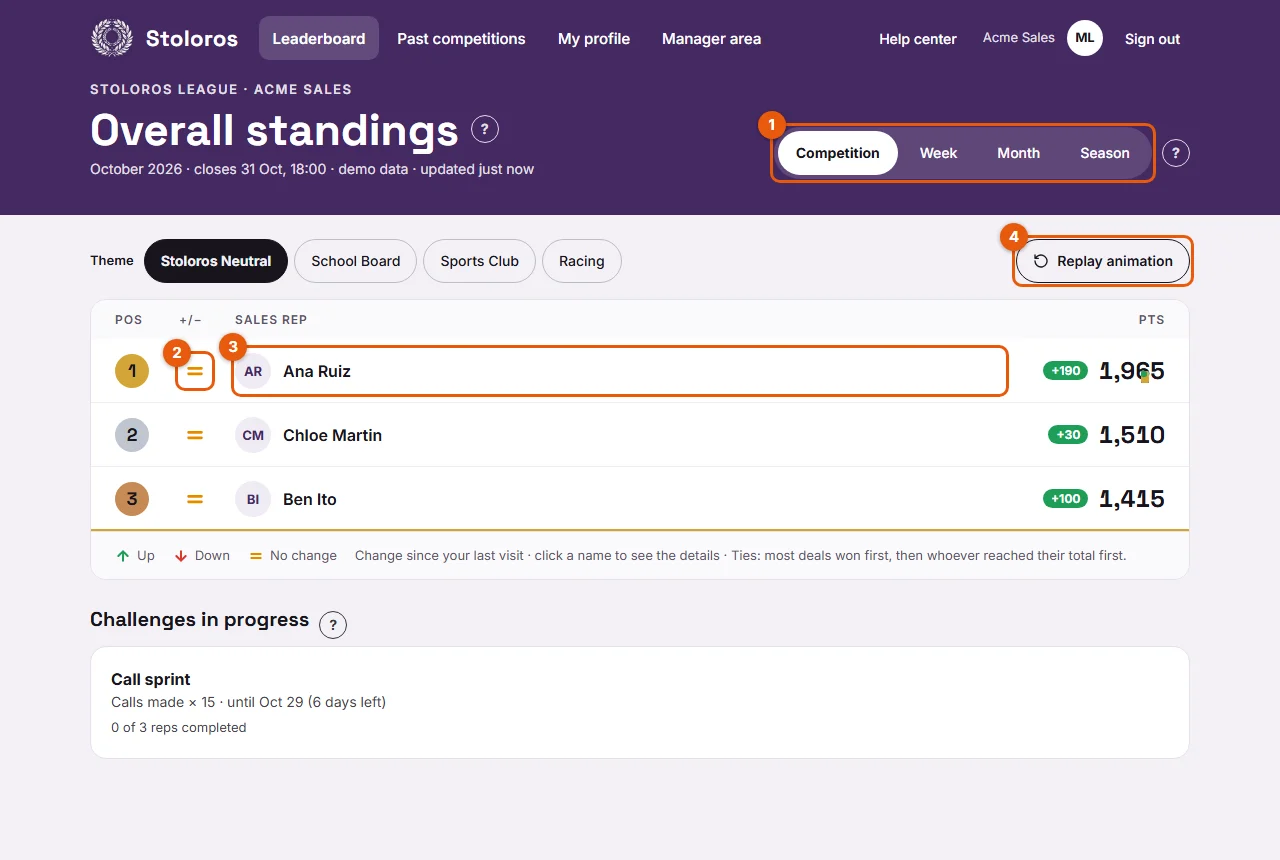
The tabs above the leaderboard change the period used to count points. Managers decide which tabs are shown.
Who it's for
Sales reps and managers · Free plan
Before you start
- To change the periods shown, you must be the team's manager.
Steps
To switch period:
- Open the Leaderboard.
- Click a tab (1): Competition, Week, Month or Season.
- The ranking, the points and the arrows update for that period.
To choose the periods your team sees (managers):
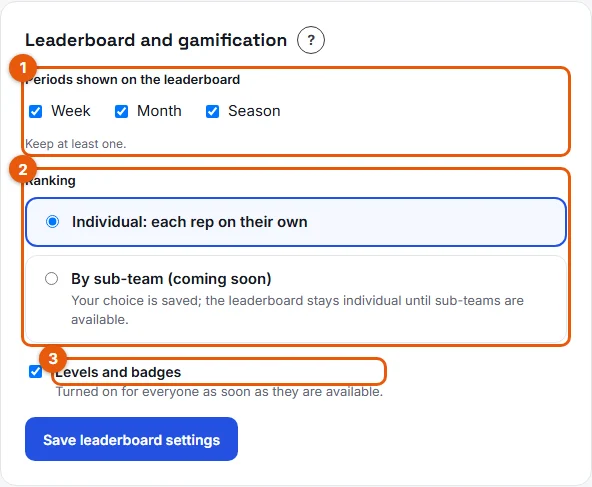
- Open Manager area, then go to Settings and find the Leaderboard and gamification card.
- Under Periods shown on the leaderboard (1), tick or untick Week, Month and Season. Keep at least one.
- Click Save leaderboard settings.
Result
Everyone in the team sees the same tabs. The Competition tab is always there and is selected when the leaderboard opens.
Good to know
- Competition: the current competition, from its start to its closing date and time. When it closes, the standings are frozen and the next one starts.
- Week: starts on the first day of the week set for your team (Monday or Sunday).
- Month: the calendar month.
- Season: the calendar year, since January 1.
- All periods follow your team's time zone.
- The period you choose also applies when you open My performance or a colleague's performance.
- If the tab you were on is removed by your manager, the leaderboard goes back to Competition.
FAQ
Why are my points different from one tab to another?
Each tab counts only the actions of its own period. Your season total includes every week and month of the year.
Can a rep hide a tab just for themselves?
No. The tabs are the same for the whole team.