How to read the email log
Check every email Stoloros sent to your team, its delivery status, and the cheers exchanged between teammates.
Two cards at the end of the Manager area keep a trace of what left Stoloros: the Email log lists every email with its delivery status, and the Cheers log lists the cheers your team exchanged.
Who it's for
Managers · Free plan
Before you start
- You are signed in as a manager.
Steps
Read the email log
- Open Manager area and scroll down to the Email log, after Settings.
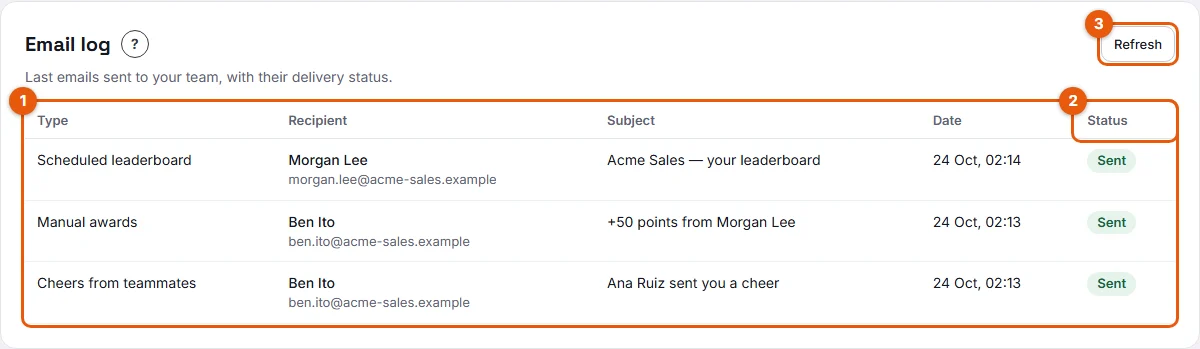
- Each row (1 on the screenshot) shows the Type of email, the Recipient (name and address), the Subject, the Date and the Status (2).
- Click Refresh (3) to read the latest statuses.
The statuses, from the moment the email leaves to its delivery:
- Queued: about to be sent.
- Sent: accepted by the email provider.
- Delivered: accepted by the recipient's mailbox.
- Deferred: the recipient's server asked to retry later. Usually resolves on its own.
- Soft bounce: temporary failure, for example a full mailbox.
- Hard bounce: permanent failure, for example an address that does not exist. Check the address in Team members.
- Blocked: refused by the recipient's server or by the provider.
- Marked as spam: the recipient reported the email as spam.
- Failed: the provider refused the email. The reason appears under the status.
- Simulated: the email provider is not configured; the email was recorded but not sent.
When Stoloros had to try several times, the number of attempts appears under the status.
Read the cheers log
- Scroll to the Cheers log, under the email log.
- Each row shows who sent the cheer (From), who received it (To), the Event it celebrates, its type (Animation or GIF), the Message if there is one, and the Date.

Result
You know which emails reached the team and can spot a wrong address or a mailbox problem before someone misses an invitation.
Good to know
- A blue notice at the top of the email log means the Brevo API key is not configured on your Stoloros hosting: every email is recorded as Simulated and nobody receives anything, invitations included.
- The log lists the most recent emails first.
- Invitations and sign-in links are also in the log, which helps when someone says they received nothing. See Invitation or sign-in link not received or expired.
- The cheers log shows messages exactly as sent. Messages are checked before sending: a refused message never appears here, because it was never sent.
- Only managers see these two cards. Members see their own cheers behind the Cheers button of the top bar.
FAQ
An invitation shows Hard bounce. What do I do?
The address is probably wrong. In Team members, deactivate the member and invite the right address.
Why is a cheer in the cheers log but not in the email log?
The recipient turned off Receive cheers from teammates emails, or the Cheers from teammates type is off for the team. The cheer was still delivered inside Stoloros.