How to choose the emails sent to your team
Turn each type of email on or off for the whole team, schedule the leaderboard email and allow cheers between teammates, from the Emails card of the Manager area.
Stoloros sends short emails to keep the team in the loop: a manual award, a challenge that starts, a competition that closes, a cheer from a colleague. You decide which ones go out. Invitations and sign-in links always do, because nobody can sign in without them.
Who it's for
Managers · Free plan
Before you start
- You are signed in as a manager.
- Emails are sent in the language of the account and in your team's colors.
Steps
- Open Manager area and scroll to Settings > Emails.
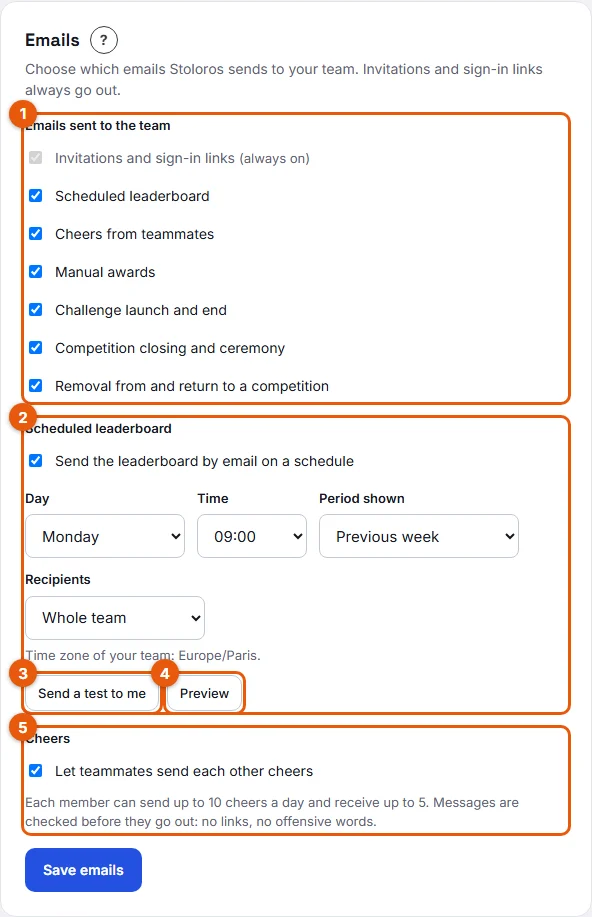
- Under Emails sent to the team (1 on the screenshot), tick the types you want:
- Invitations and sign-in links: always on, you cannot turn them off.
- Scheduled leaderboard: the leaderboard sent by email on the day and time you choose.
- Cheers from teammates: the email a member receives when a colleague cheers them.
- Manual awards: the email a member receives when you award them points.
- Challenge launch and end: one email when a challenge starts, one when it ends.
- Competition closing and ceremony: the final standings and a link to the ceremony.
- Removal from and return to a competition: sent to the member you remove or reinstate.
- Under Scheduled leaderboard (2), set the schedule. See How to schedule the leaderboard email. Send a test to me (3) sends it to your own address; Preview (4) shows it on the page.
- Under Cheers (5), keep Let teammates send each other cheers on, or turn it off for the whole team. The line below reminds you of the limits: each member can send up to 10 cheers a day and receive up to 5.
- Click Save emails.
Result
"Saved." confirms the change. From now on, only the ticked types are sent. A type you turn off is greyed out for every member in My profile > Emails, with "disabled for your team".
Good to know
- Members can also turn off each type for themselves, from My profile > Emails or with the unsubscribe link at the bottom of every email. They cannot turn on a type you disabled.
- Turning Let teammates send each other cheers off hides cheers for the whole team: the Send a cheer button answers "Cheers are disabled for your team." and the Receive cheers from teammates switch is greyed out in profiles.
- Every email is recorded in the Email log, with its delivery status. See How to read the email log.
- Cheer messages are checked before they go out: no links, no insults, nothing sexual, no harassment.
- Invitations and sign-in links come from the sign-in service; the other emails come from the Stoloros notifications address.
FAQ
Nothing arrives, even after a test. Why?
Open the Email log. If a blue notice says the Brevo API key is not configured, emails are recorded but not sent. Ask whoever hosts your Stoloros to add the key.
Can I send the emails in two languages?
No. Emails use the language of the account, the same for everyone. See How to choose the account language.