How to set your nickname and avatar
Choose how you appear on the leaderboard and during closing ceremonies: a nickname, and one of 12 avatars or your initials.
Your profile sets how you appear to your team. Both settings are optional.
Who it's for
Sales reps and managers · Free plan
Before you start
- You are signed in to Stoloros.
Steps
- In the top menu, click My profile.
- In Nickname (optional) (1), type the name you want to show, up to 40 characters. Leave it empty to keep your real name.
- Under Avatar (2), click one of the 12 avatars: Fox, Owl, Bear, Panda, Lion, Tiger, Koala, Frog, Octopus, Penguin, Dolphin or Rocket. To keep a plain circle with your initials, click My initials.
- Optional: tick Don’t include me in the encouragement moment (3) if you never want to appear in the "Comeback next round" sequence of the ceremony.
- Click Save (4).
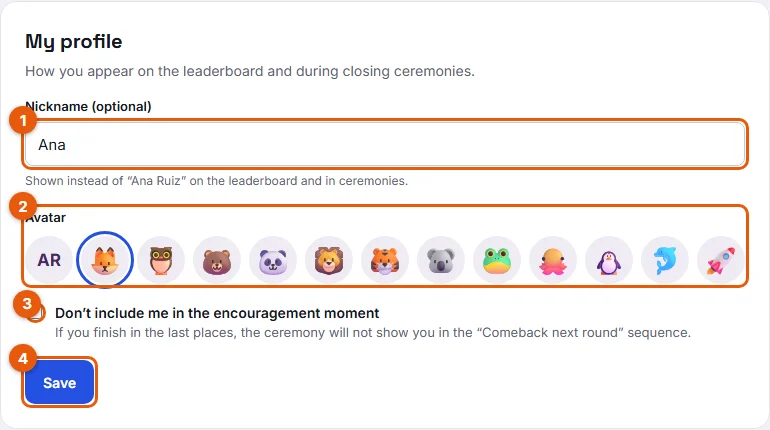
Result
Stoloros shows "Profile saved." Your nickname replaces your name on the leaderboard and in closing ceremonies. Your avatar appears in closing ceremonies, for example on the podium.
Good to know
- Example: Ana Ruiz types "Ace" as her nickname. Her colleagues see "Ace" on the leaderboard. Her manager still sees "Ana Ruiz" in Team members.
- You can change your nickname and avatar at any time. To go back to your real name, empty the nickname field and click Save.
- The leaderboard rows show initials. The avatar is used in the ceremony.
- You cannot upload a photo: the avatars are the only pictures available.
- Managers have the same page, and their nickname is used if they join the leaderboard.
FAQ
Can I use any nickname?
Use a name your team will recognize, up to 40 characters. Your manager can always see who is behind it.
I chose an avatar, but the leaderboard shows my initials. Is that normal?
Yes. The avatar appears during closing ceremonies, not in the leaderboard rows.