How to set points per source
Give a connected CRM or project tool its own points; the default scoring keeps applying to the other sources.
By default, one scoring applies to every source. When a source deserves different points (a migration, a tool where tasks are smaller), the manager can give it its own scoring.
Who it's for
Managers · Free plan
Before you start
- At least one CRM or project tool must be connected: the Scoring for selector only appears then.
Steps
- Open the Manager area, then the Scoring rules card in Settings.
- Under Scoring for, choose the source (for example Brevo) instead of All sources (default scoring).
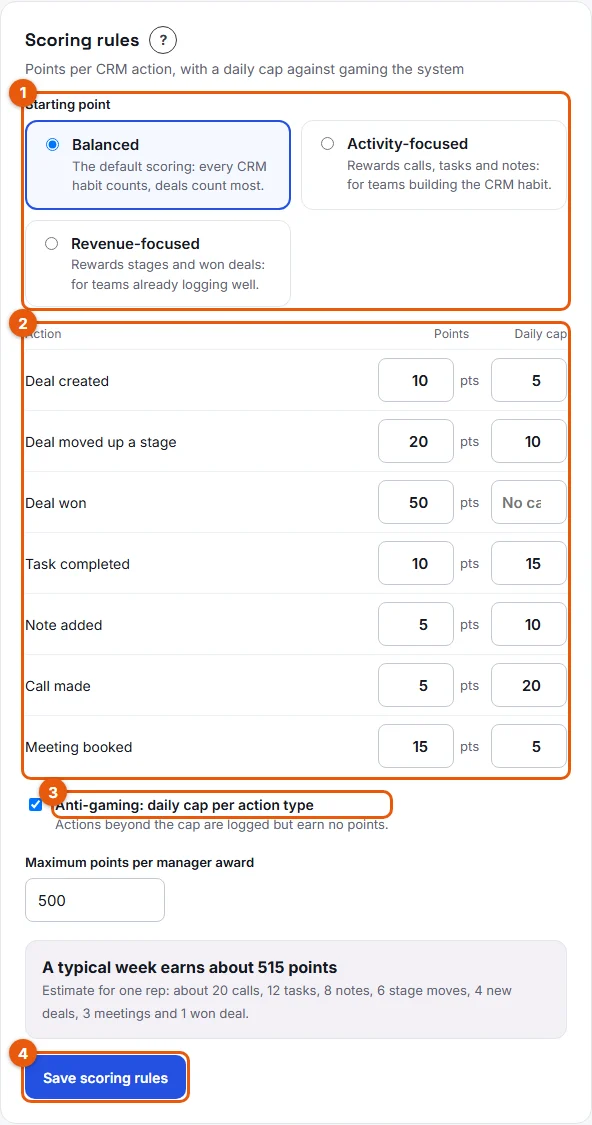
- The table shows the criteria that source can provide, with the points currently in effect for it.
- Change the points or the daily caps (2), then click Save scoring rules (4).
Result
Actions read from that source earn the new points from now on. Past points do not change. The other sources keep the default scoring.
Good to know
- Back on All sources (default scoring), you edit the default scoring and its presets. A source with its own scoring is not affected.
- Disconnecting a source removes its own scoring: if it is connected again, the default scoring applies until you set it again.
- My performance shows, for each action, the points really earned, so a rep can see the source's scoring at work.