What to do when your CRM shows an error
Brevo refused the key, blocked Stoloros's IP address or could not be read? Find the message and its fix.
When Stoloros cannot connect to your CRM or read it, it shows a message in the CRM card of the Manager area. Each message below comes with its fix.
Who it's for
Managers · Free plan
Before you start
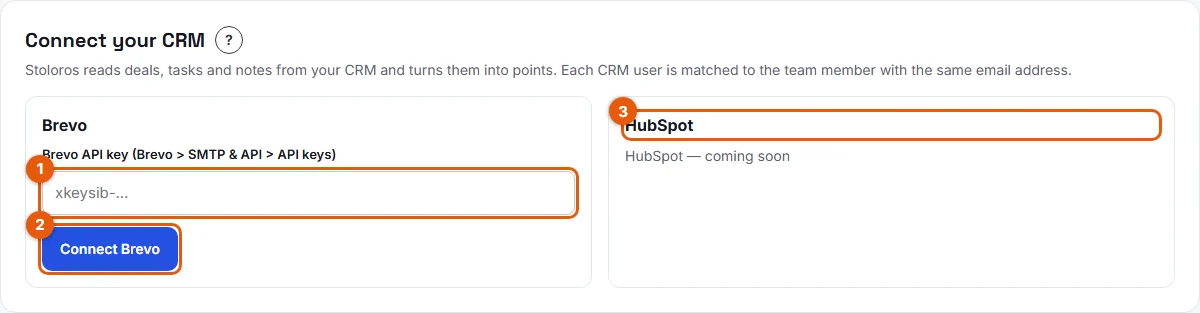
- Open Manager area and look at the CRM card. During a connection, the message appears under the Connect Brevo button. After a failed sync, it replaces the time of the last sync.
How it works
"Brevo blocked Stoloros because it only accepts known IP addresses"
By default, Brevo only accepts API calls from known IP addresses. Stoloros's addresses can change, so they cannot be added to a list. Fix: in Brevo, open Security, then Authorised IPs, and turn off IP blocking for the API. Then go back to Stoloros and click Connect Brevo again.
"Brevo refused this API key"
The key is wrong, incomplete, deleted, or not a v3 API key. The message adds Brevo's own explanation in brackets. Fix: in Brevo, open SMTP & API, then API keys, and create a new key. Paste it whole in the Brevo API key (Brevo > SMTP & API > API keys) field and click Connect Brevo.
"Brevo refused the API key. Connect Brevo again with a valid key."
The connection worked before, but the key was deleted or disabled in Brevo since then. No new action is read until it is fixed. Fix: click Disconnect, then Yes, disconnect, and connect Brevo again with a new key. Points already earned are kept, but actions logged while the connection is broken are not counted. Act quickly.
"Brevo could not be read"
Brevo did not answer correctly, for example during an outage. The end of the message gives Brevo's reason. Fix: wait a few minutes and click Sync now. Stoloros also tries again when someone opens the leaderboard and once a day.
"Brevo is already connected. Disconnect it before connecting another CRM."
Stoloros reads one CRM per team. Fix: disconnect the current CRM first. See How to disconnect your CRM.
"HubSpot is coming soon."
HubSpot cannot be connected yet. See Connecting HubSpot (coming soon).
Good to know
- A CRM error never blocks the leaderboard. Your team still sees it, without the newest actions.
- Reps do not see CRM errors. Only managers see the CRM card.
- Your API key is stored encrypted and never shown again after the connection.
FAQ
Do we lose points when the CRM is in error?
Points already earned are kept. Actions are read again once the error is fixed, as long as you did not have to disconnect.
The card says "Not synced yet". Is that an error?
No. It means no sync has run since the connection. Click Sync now to start one.