How to set up Stoloros with the setup wizard
Walk through the 11 steps of the setup wizard, from the language to the launch of your leaderboard.
The setup wizard prepares your team in 11 steps. Only the first 4 are required; you can skip the others and change everything later in the settings.
Who it's for
Managers · Free plan
Before you start
- Have your Brevo API key at hand if you use Brevo (Brevo > SMTP & API > API keys).
- Prepare the work email addresses of your sales reps.
- Your progress is saved after each step. If you stop, you come back to the step you reached at your next sign-in.
Steps
The progress bar shows "Step N of 11". Required steps carry an asterisk. Use Back to go back, Continue to move on and Skip on optional steps. You can also click any step already reached in the progress bar.
- Language: choose English or Français for the whole team. See How to choose your team's language.
- Create account: enter Your name and Work email, accept the terms, then click Email me my sign-in link. Setup continues after you sign in. See How to create your Stoloros account.
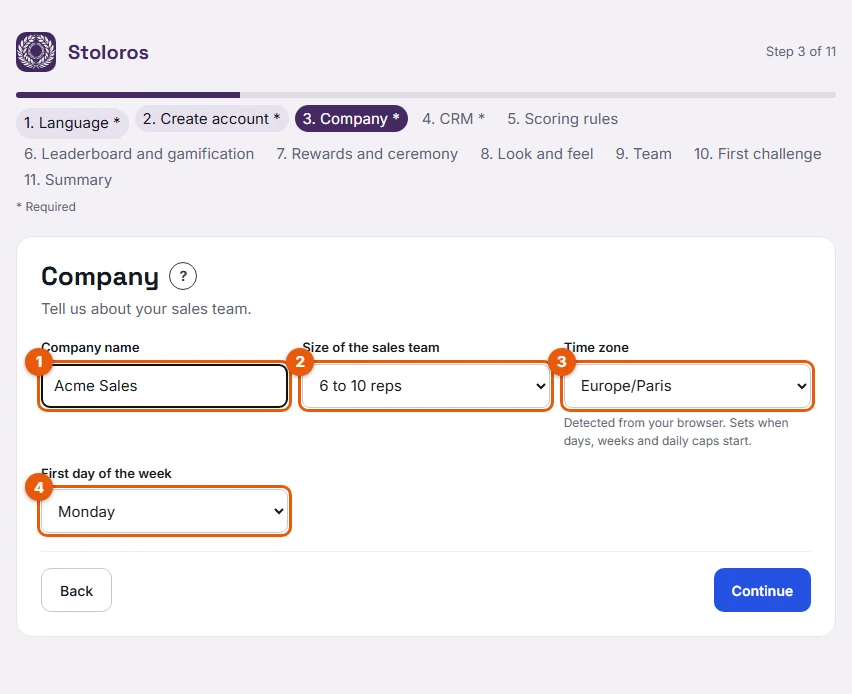
- Company: fill in Company name (1), Size of the sales team (2), Time zone (3) and First day of the week (4). See How to set your company settings.
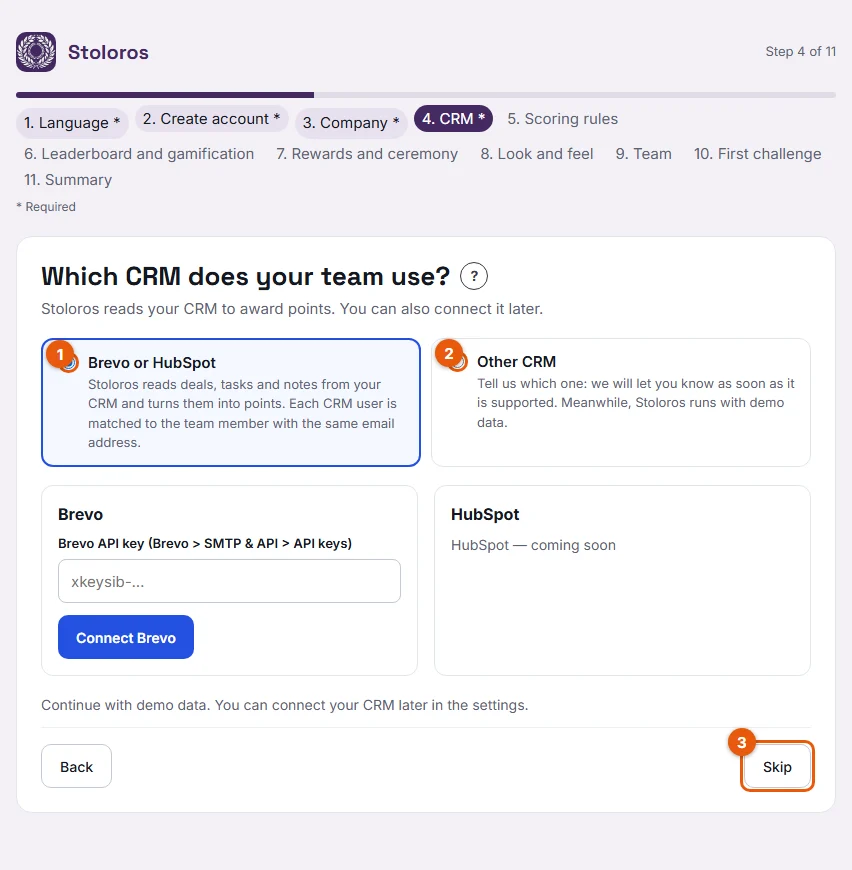
- CRM: choose Brevo or HubSpot (1) to connect your CRM, Other CRM (2) to be notified when yours is supported, or Skip for now (3) to start with demo data. HubSpot shows "HubSpot — coming soon" for now. See How to connect Brevo and If your CRM is not supported.
- Scoring rules: pick a Starting point (1): Balanced, Activity-focused or Revenue-focused. Adjust points and daily caps if needed (2). The preview (3) shows what a typical week earns, for example about 515 points with Balanced. See Scoring presets.
- Leaderboard and gamification: choose the Competition period (Week, Month, Quarter or Custom period), the Closing day and Closing time (Friday 18:00 by default), and the Periods shown on the leaderboard. See Competitions overview.
- Rewards and ceremony: set the Number of winners celebrated (3 by default), an Announced reward and an Arrival animation per place, the optional encouragement for the last places, and When the ceremony is shown. See Rewards.
- Look and feel: choose a Theme, the Main color, the Podium accent and a Company logo. The preview plays the arrival animation. See Theme, colors and logo.
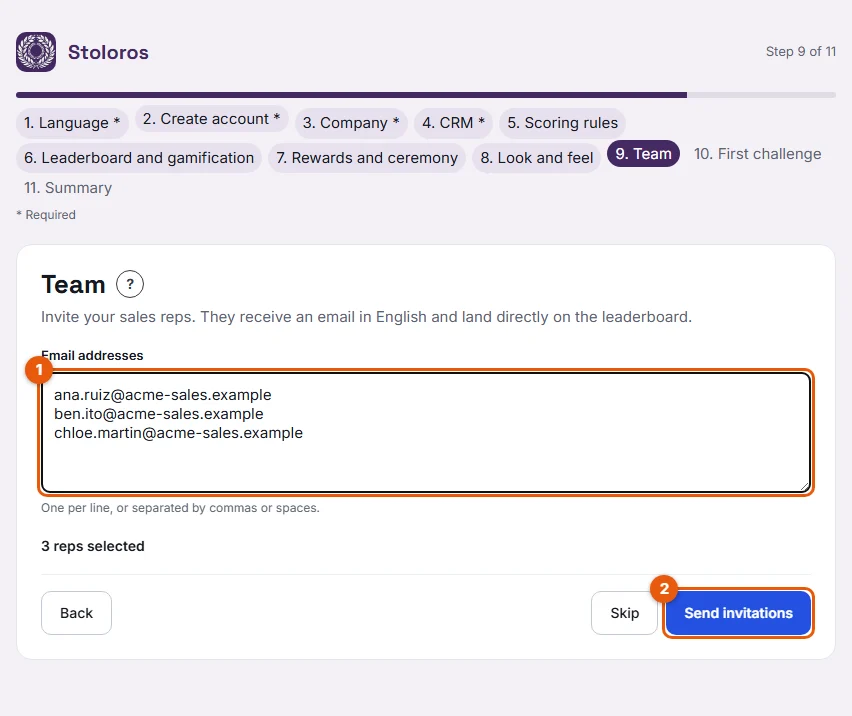
- Team: paste Email addresses (1) or tick your CRM users, then click Send invitations (2). See How to invite team members.
- First challenge: pick a template such as Call sprint, add a Reward (optional), then click Launch this challenge. See Challenges.
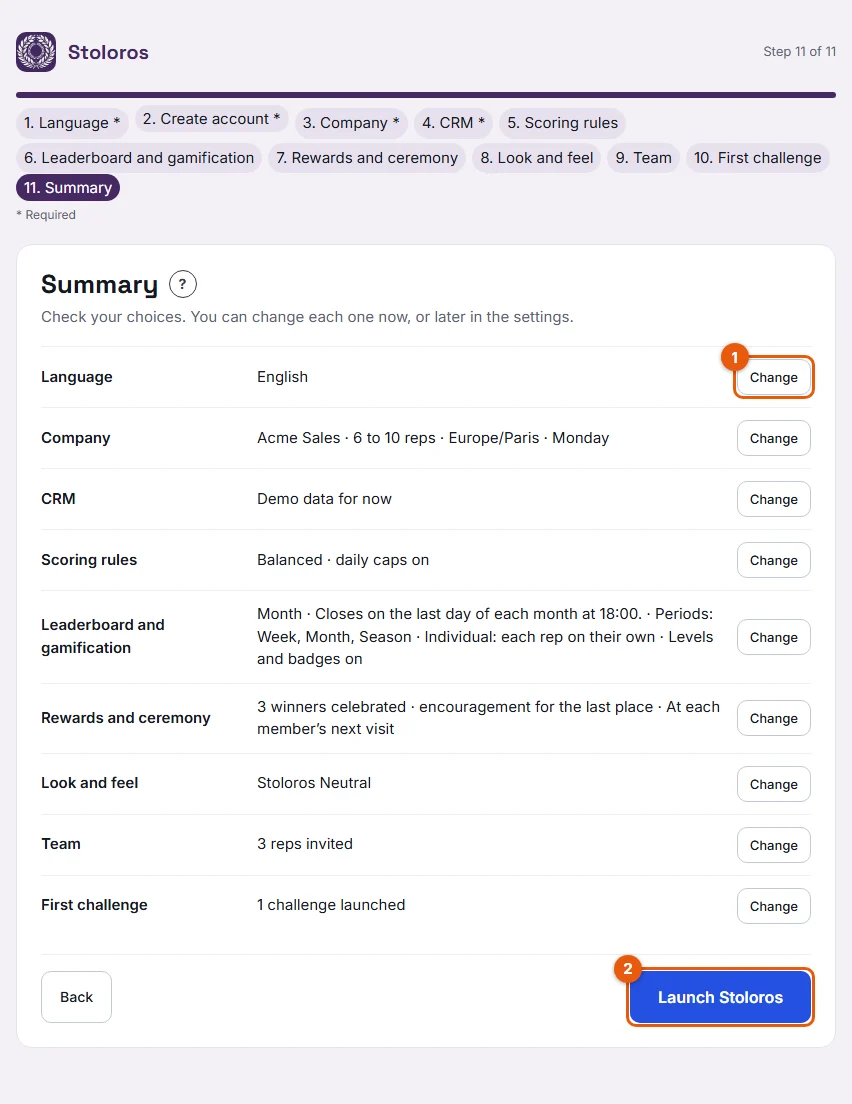
- Summary: check each row. Click Change (1) to go back to a step. When everything is ready, click Launch Stoloros (2).
Result
Stoloros opens the leaderboard with its arrival animation. Your team is live. The reps you invited on the Team step already have their invitation email; when they accept it, they land directly on the leaderboard.
Good to know
- Launch Stoloros works only when the 4 required steps are complete. Otherwise the Summary lists the missing steps.
- In the wizard, the scoring rules you choose apply from the start. After launch, a change applies only to actions logged from then on.
- Nothing logged in the CRM before the connection is counted.
- You can change these choices later in Manager area > Settings. Team members, the CRM and challenges are also managed in the Manager area.
FAQ
Can I stop in the middle and finish later?
Yes. Each step is saved. Sign in again and you return to the step you reached.
I have no CRM connected yet. Can I still launch?
Yes, if you chose Other CRM or Skip for now on the CRM step. Stoloros then runs with demo data, removed as soon as you connect a CRM.
Do my reps go through the wizard?
No. Only the manager who creates the team does. Reps land on the leaderboard.